Connecting to the PostgreSQL Database
Databases are essential for storing and managing data in any application. Whether you are building a web app, mobile app, or any other software, a database helps keep your data organized and accessible. PostgreSQL is a powerful, open-source relational database that is widely used for handling structured data with advanced querying capabilities.
Step 1: Creating a Database on PostgreSQL
To create a database in PostgreSQL, follow these steps:
- Download and Install PostgreSQL – Visit the official PostgreSQL website and install the appropriate version for your operating system.
- Open pgAdmin – pgAdmin is a graphical interface for managing PostgreSQL databases. Open it after installation.
- Connect to the PostgreSQL Server – When you launch pgAdmin, it will ask you to connect to a PostgreSQL server. Use the default credentials (username:
postgres, password: set during installation). - Create a New Database – In pgAdmin, right-click on “Databases” and select “Create” → “Database.” Enter a database name and click “Save.”
Step 2: Creating User Authentication for Database Access
To ensure secure access to your database, create a new user with specific permissions:
- Open SQL Query Editor – In pgAdmin, select your database and open the SQL Query tool.
- Create a New User – Run the following SQL command, replacing
usernameandpasswordwith your chosen credentials:CREATE USER username WITH PASSWORD 'password'; - Grant User Permissions – Assign necessary privileges to the new user:
GRANT ALL PRIVILEGES ON DATABASE database_name TO username;
Step 3: Getting the Connection String
To connect your application to the PostgreSQL database, you need a connection string:
- Find Connection Details – The default connection format is:
postgresql://username:password@localhost:5432/database_name - Replace the Credentials – Update
username,password,localhost(if remote, use server IP),5432(default port), anddatabase_nameaccordingly. - Use the Connection String in Your Synngular Project – You just Need to paste the connection string in the required input field.
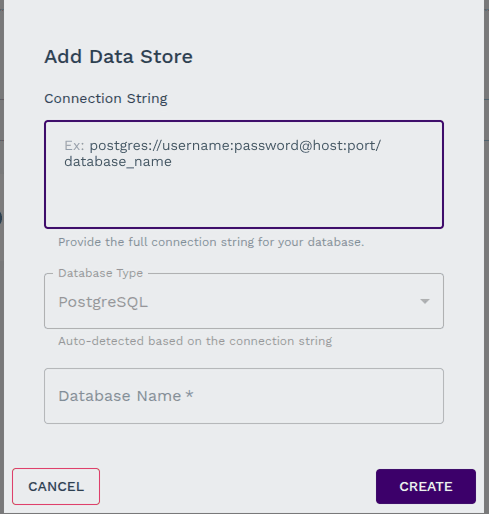
By following these steps, even non-technical users can set up a secure PostgreSQL database and connect it to their applications with ease.
Last updated on