Create/Import a New Data Model
Open the Data Models Tab
A data model is the schema of your table where you will store data. There are two ways to create a data model:
- Import an existing data model
- Create a new data model
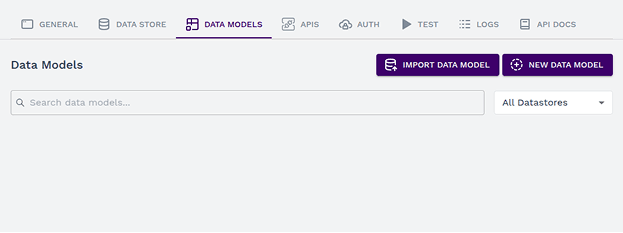
1. Click the Import Data Model Button
Click on the Import Data Model button to open a popup for importing a Data Model from the database.
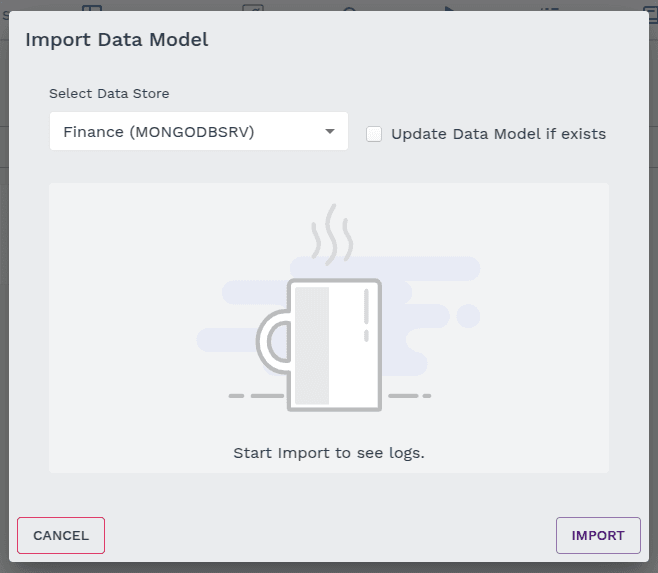
- Select the data store from the dropdown.
- Check the Update Data Model if exists option if required.
- Click the Import button to complete the process.
2. Click the New Data Model Button
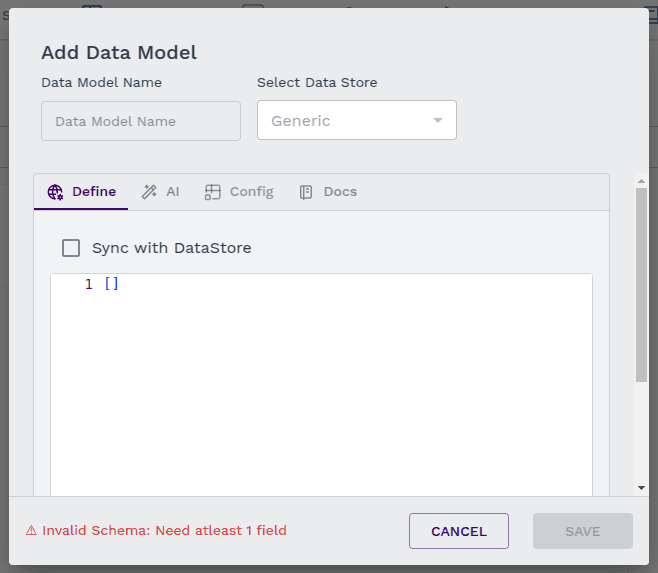
Click on the New Data Model button to open a popup for creating a new Data Model.
- Enter the Data Model name (e.g., Users).
- Select the Data Store you want to connect the Data Model to.
- Define the schema manually following the provided documentation for a valid schema or use the AI schema generator.
Example Schema Structure:
[
    {
      "fieldName": "...", // Required: Field name
      "type": "...",    // Required: Field type
      "isRequired": true,  // Optional: Is field required?
      "isPrimary": true  // Optional: Is field primary?
    }
]
Available Data Types:
- string - Text data
- number - Numeric data
- boolean - True/false values
- date - Date values
- array - List of values
- object - Nested structure
Example Object:
{
  "type": "object",
  "properties": {
    "prop1": { "type": "string" },
    "prop2": { "type": "number" }
  }
}
Note: You need to enter at least one field to create a schema.
Using AI to Generate Schema
- Enter a prompt describing the schema specifications.
- Click the Generate button, and the AI will generate the schema.
- You can edit the generated schema as needed or use it as it is.
Configuring the Schema
Enable Sync with Data Store to configure schema settings. Under the Config Tab, you will find:
- Indexing - Choose fields for indexing.
- Unique - Specify fields that should hold only unique values.
Finalizing the Data Model
- Click Create to finalize the Data Model.
- Note: Configurations cannot be done for Generic types.
Your data model is now ready for use!
Last updated on