Storage
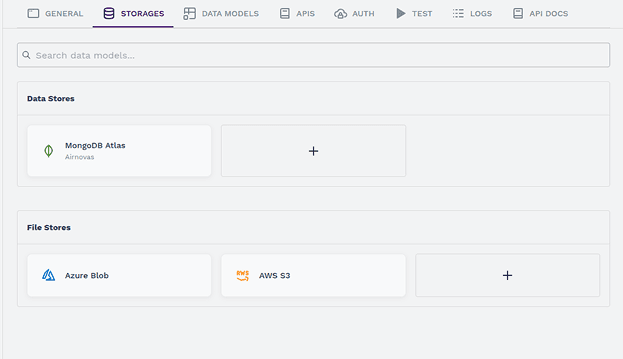
Data storage is essential for any application. Navigate to the Storage section from the General tab and set up your database:
Understanding Storage Options
Storage is essential for managing data and files in any application. This guide will help you easily set up a new Data Store or File Store on Synngular.
- Data Stores: These are databases used to store structured data.
- Available options: MongoDB, MongoDB SRV, PostgreSQL, Redis.
- File Stores: These are used to store and manage media and files.
- Available options: Azure Blob Storage, AWS S3.
Adding a New Storage
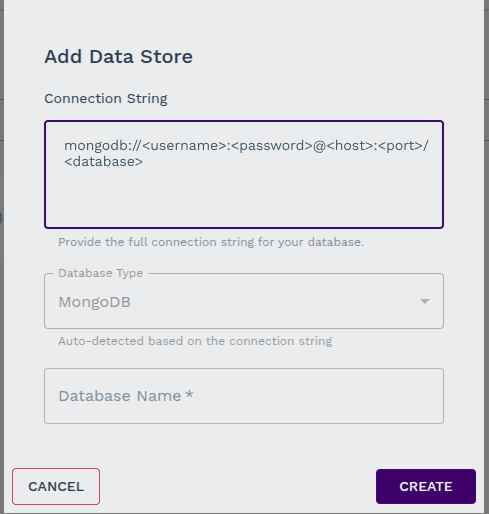
- Click the add (+) icon in the Data Store section. A popup will appear.
- Paste the connection string of the selected Data Store.
- The Database Type will be automatically detected.
- Enter a Database Name (either to create a new one or connect to an existing one).
- Click Create to finalize the setup.
- Upon successful creation, the new Data Store will appear on the Storage.
Adding a New File Store
- Click the add (+) icon in the File Store section. A popup will appear.
- Choose the type of File Store:
- AWS S3
- Azure Blob Storage
Configuring AWS S3 File Store
- Enter the Access Key of your S3 bucket.
- Enter the Secret Access Key.
- Provide the Region where the S3 bucket is located.
- Enter the Bucket Name you created.
Configuring Azure Blob Storage
-
Paste the Connection String of your Azure Blob storage.
-
Enter the Container Name of your Azure Blob storage.
-
Click Save to finalize the setup.
-
Upon successful creation, the new File Store will appear under the File Stores section.
⚡
Important Note
- Always double-check the connection keys and strings before finalizing the setup.
- Ensure that you have the correct permissions to access your storage services.
By following these simple steps, you can easily set up your data and file storage on Synngular.
Last updated on